Safety
Precautions for use and safety
Operation with the power unit
Connect exclusively to a B.Beat (B.Beat, B.Beat EVO, B.Beat PLUS, B.Beat PRO, B.Beat X) via a USB-C data cable.
If damaged, contact technical support and replace exclusively with a unit identical to the one supplied.
Modifications
- Do not open the unit.
- Do not attempt to modify the product.
Handling
- Do not drop or tip over the unit.
- Do not apply excessive force.
- Avoid the entry of foreign objects or liquids.
- The device may be used by children aged eight years and older and by persons with reduced physical, sensory or mental capabilities, or lacking experience, provided they are supervised or have been given adequate instruction.
- Children must not play with the device.
- Cleaning and maintenance must not be performed by unsupervised children.
- Do not use near explosion-risk environments.
- Do not use in excessively humid environments, in the rain, or with water jets.
- Do not immerse the device in liquids.
- Place the device on stable, solid surfaces, at least 15 cm from the edge.
- Do not use the device enclosed inside boxes or containers.
- Do not remove the support feet.
- Do not use on non-rigid or uneven surfaces.
- If used with stands or supports, use of the dedicated mount is recommended.
Environment
- Do not use at extreme temperatures.
- Do not use near heat sources (radiators, stoves and similar).
- Do not use in excessively humid environments or in contact with water.
- Do not use in places subject to strong vibrations.
- Do not use in environments with an excessive amount of dust or sand.
Connecting DMX cables
- Always switch off all equipment before connecting cables.
- Always disconnect all cables and power before moving the unit.
- Connect the device only to equipment that complies with applicable safety standards.
- Arrange cables so as to avoid accidental pulls that could cause the device to fall.
Interference with other electrical equipment
The LAKYX equipment complies with the essential requirements of Directive 2014/35/EU regarding electromagnetic compatibility.
However, equipment that is susceptible to interference or that emits strong electromagnetic waves may cause malfunctions if placed nearby. In such cases:
- maintain an adequate distance between devices;
- be aware that electromagnetic interference may cause malfunctions, loss or corruption of data, and other operational problems.
Cleaning
- Use a soft, dry cloth.
- If necessary, lightly dampen the cloth.
- Do not use abrasive detergents, waxes, alcohol, benzene or paint thinners.
Malfunctions
In the event of a fault or failure to operate:
- immediately disconnect the USB-C cable connecting to LAKYX;
- disconnect all other cables;
- contact the dealer or a LAKYX service center, providing:
- product model;
- serial number;
- detailed description of the fault;
- name, address and phone number.
Copyright
Capture is a registered trademark of Capture Visualisation AB. All other trademarks belong to their respective owners.
Disposal
Pursuant to Italian Legislative Decree No. 49 of 14 March 2014 (implementing WEEE Directive 2012/19/EU):
- The crossed-out wheeled bin symbol indicates that the product must be collected separately from other waste.
- End-of-life separate collection is organized by the manufacturer.
- The user must contact the manufacturer and follow the procedures established for proper disposal of the equipment.
Introducing LAKYX
Thank you for choosing LAKYX.
LAKYX is the system that lets your B.Beat manage the light show during your performances.
The system consists of a hardware unit that connects B.Beat to the DMX lighting rig, and software built into B.Beat Manager, which lets you create, program and manage shows in a simple, intuitive, guided way.
LAKYX is compatible exclusively with models in the B.Beat family: B.Beat, B.Beat EVO, B.Beat PLUS, B.Beat PRO 16 and B.Beat X.
With B.Beat Manager you can create and customize your light shows. Once the project is complete, it is saved on the B.Beat and is immediately ready for live use. During the performance, B.Beat will automatically play back, through the connected LAKYX unit, the DMX signal that controls the light show, without the need for additional devices or user intervention.
Whether you're a musician, a band, a performer or a technician, LAKYX has been designed to make lighting control simple, fast and accessible, letting you bring high-impact shows to the stage without the complexity of traditional DMX programming systems.
In the following pages you'll discover how to connect LAKYX, configure it and create your first light shows.
Contents
- Safety
- Introducing LAKYX
- A closer look at LAKYX
- Quick Start Guide — Main functions
- Connections and live use
- Creating, configuring and optimizing the show
- Show preview
- 3D stage simulation
- Wireless features
- Technical specifications
- FAQ — Frequently asked questions
A closer look at LAKYX
What's in the box
- LAKYX
- USB-C cable
- Stand mount
- RP-SMA antenna (L5-W model only)
- Quick Start Guide
| Item | Image |
|---|---|
| USB-C cable | 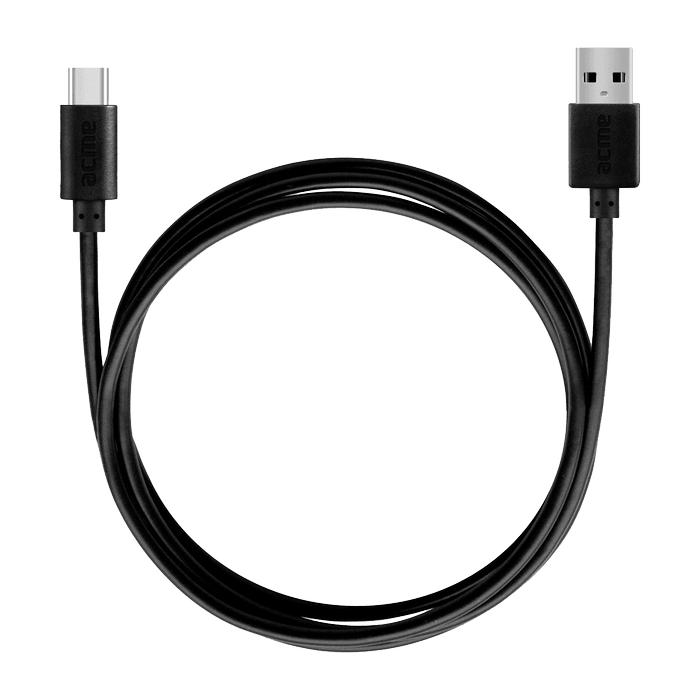 |
| Stand mount | 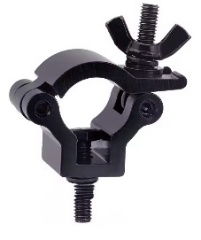 |
| RP-SMA antenna | 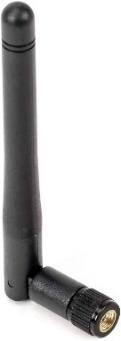 |
Available models
| Name | Description |
|---|---|
| L | Playback of 512 channels (recorded shows) · Demo version of 512 channels (generated shows) |
| L1 | Playback of 512 channels (recorded shows) · Playback of 128 channels (generated shows) |
| L5 | Playback of 512 channels (recorded shows) · Playback of 512 channels (generated shows) |
| L5W | Playback of 512 channels (recorded shows) · Playback of 512 channels (generated shows) · Radio module |
Front panel
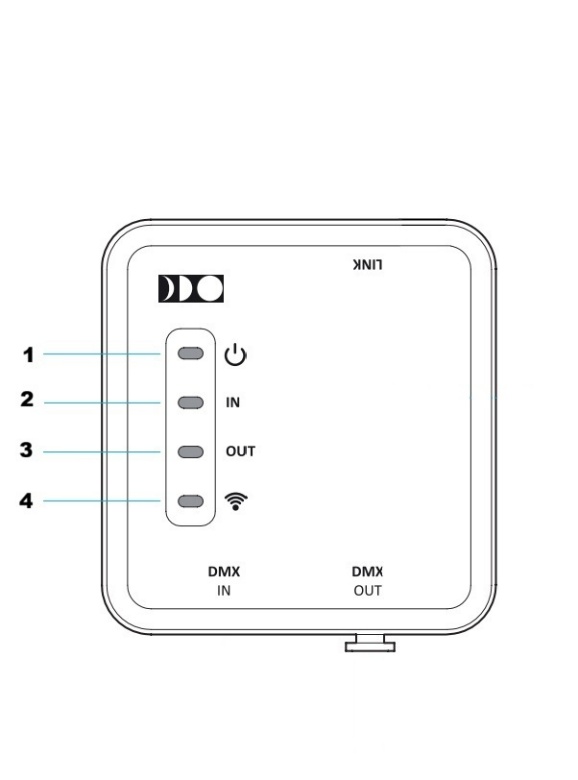
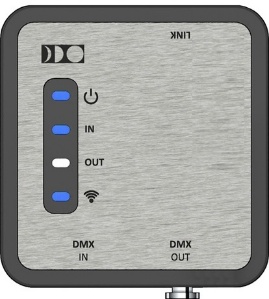
On the top of the LAKYX device are the status LEDs POWER, DMX IN, DMX OUT and WIRELESS. These indicators let you quickly check that the device is working correctly and make the system easier to use based on their operating state.
- POWER LED
- DMX IN LED
- DMX OUT LED
- WIRELESS LED
Below is a table with the various functions and the corresponding LED states.
LED Status
The Status LED reports the state the LAKYX device is in, according to the following table.
| Color | LED | State | Function |
|---|---|---|---|
| BLUE | Power | Fast blinking | Programming mode |
| BLUE | Power | Slow blinking | Device powered on without an active USB connection |
| BLUE | Power | Solid on | Operating mode |
| BLUE | DMX IN | Solid on | DMX signal being received |
| BLUE | DMX IN | Off | No DMX signal detected |
| WHITE | DMX OUT | Solid on | DMX signal being transmitted |
| WHITE | DMX OUT | Slow blinking | Bypass mode |
| BLUE | Wireless | Solid on | DMX signal transmitted correctly |
| BLUE | Wireless | 1 s blink | Radio link active |
| BLUE | Wireless | 0.2 s blink | Radio configuration active |
| BLUE | Wireless | Off | Radio not active |
Top view and connectors
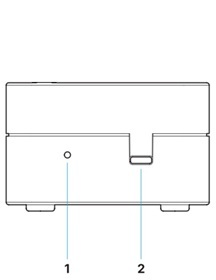
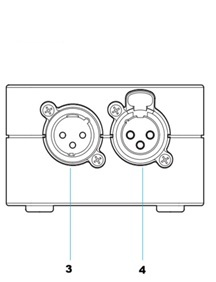
- LINK: button for managing the CRMX wireless module. Enables pairing with compatible devices and resetting radio settings (L5W model only).
- USB-C: connector for power and data communication with B.Beat devices, used to manage light shows.
- DMX IN: DMX input for receiving data from lighting consoles or external controllers. Enables DMX show recording and BYPASS mode.
- DMX OUT: DMX output for connecting fixtures, dimmers or other compatible devices. Transmits the data generated by LAKYX to the lighting rig.
Mounting LAKYX on a microphone stand
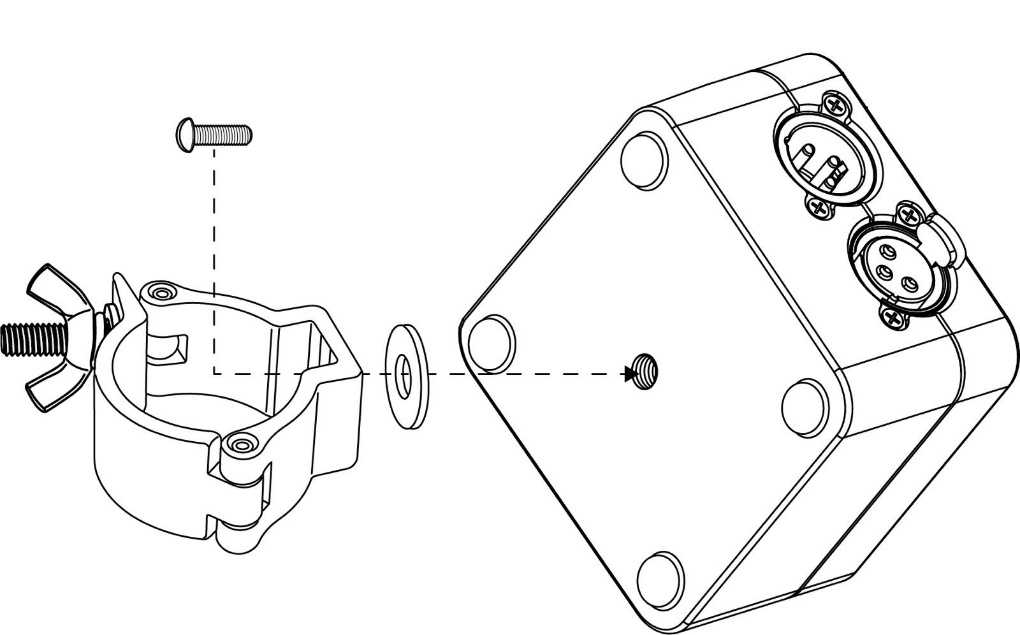
On the back of LAKYX there is a threaded hole for attaching the stand mounting clamp included in the package. The clamp allows the device to be installed on microphone stands or other compatible stage supports, ensuring stable and secure positioning. Before use, check that the mount is properly tightened.
Quick Start Guide
If you've just purchased LAKYX, follow these steps to create and play back your first light show.
1. Connect the system
- Connect the LAKYX device to the B.Beat's USB port.
- Turn on the B.Beat.
- Check that B.Beat and B.Beat Manager are updated to version 6.0 or later. Updates are available on the M-Live website, in the Products section, by selecting the B.Beat model and going to the Firmware Update page.
- Open B.Beat Manager.
- Connect the B.Beat to the computer via Ethernet cable or Wi-Fi.
2. Generate your first light show

- Open an existing audio project in B.Beat Manager.
- Go to the Media section at the bottom of the page.
- Select Light Show.
- Click Generate Light Show.
- Select the audio tracks to use for generating the show. For the best result, select the tracks that represent the musical content of the song and exclude utility tracks such as click track, SMPTE, guide vocals or other technical signals. The closer the selected material is to the full mix of the song, the more accurate the light show generation will be. If the project doesn't have a complete stereo track, use all the synchronized musical tracks that make up the song, so LAKYX can correctly analyze the arrangement.
- Start automatic show generation by clicking "Generate".
- Wait for processing to complete.
Once generation is complete, the entry "Go to LAKYX" will appear in the Media section. Select it to access the light project and view or edit the generated show.
3. Create and save a Stage (Set)
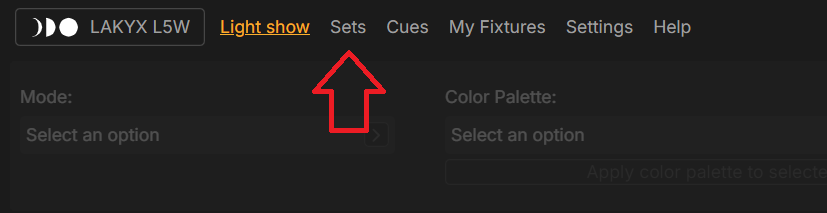
- Click "Create Set" to start configuring the stage.
- LAKYX includes a library with thousands of available fixtures. A fixture is any lighting or stage-effect device connected to the system and controllable from the app, such as LED projectors, moving heads or smoke machines. Download the library by clicking "Download Fixtures".
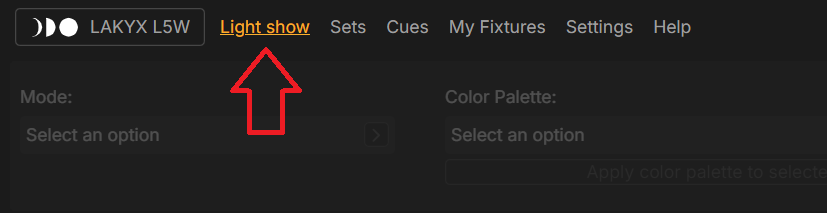
- Once the download is complete, you can search for devices within the library. If a device isn't listed, you can request that it be added by providing its technical specifications, writing to assistenza@m-live.com. Alternatively, in the "My Fixtures" section you can create a custom fixture by manually defining the DMX channels and their functions, so you can use the device even if it isn't yet in the LAKYX database.
- Search for fixtures and assign them to the DMX universe, setting the channel to match the one configured on the physical device.
- Save the Set.
By saving one or more Sets, you can use the same light show on different stages without reconfiguring the fixtures. The LAKYX show automatically adapts to the Set selected as default, applying the correct configuration for each stage. All Sets are saved directly on the B.Beat and are available for the performance.
4. Go live
- Connect the LAKYX DMX output to your lighting rig.
- Select the project on the B.Beat.
- Start the song.
The backing track and the light show start automatically in perfect sync. Audio and lights play back synchronized throughout the performance of the song.
Enjoy the show.
Connections and live use
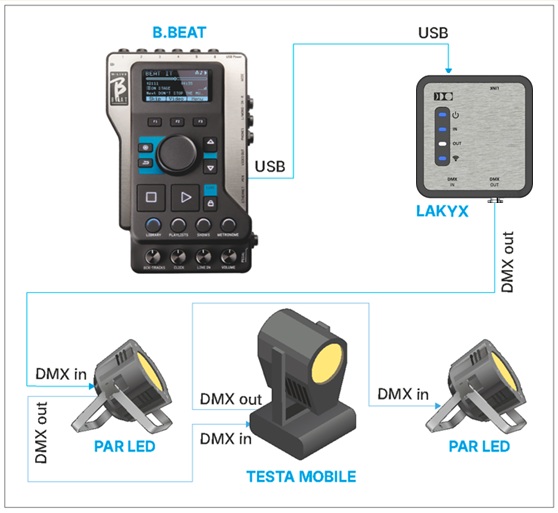
To use LAKYX on stage, connect the device's USB Type-C port to the B.Beat's USB port. The USB connection supplies power and enables communication between the two devices.
To connect to the lighting rig, use a DMX cable with a 3-pin XLR connector, connecting LAKYX's DMX OUT output to the stage's DMX line.
BYPASS mode
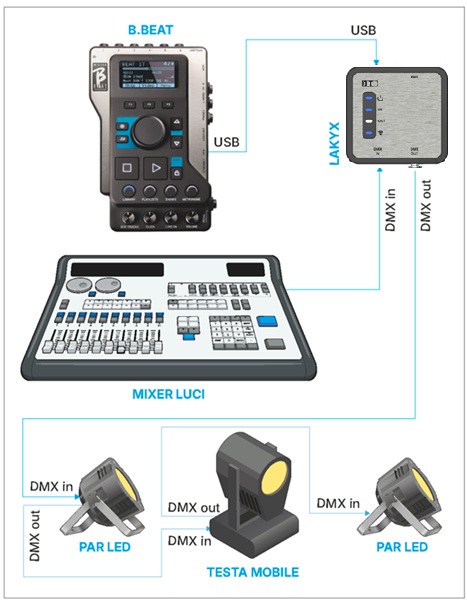
BYPASS mode lets you temporarily exclude LAKYX's lighting control and hand rig management over to a lighting console or an external DMX controller.
During normal operation, LAKYX controls the lights via the shows associated with the audio projects on the B.Beat. When BYPASS is activated, the system stops its own control and passes the signal received on the DMX IN input straight through to the DMX OUT output. This way, the external console or controller can take full control of the rig without changing the existing connections.
Deactivating BYPASS, LAKYX immediately resumes synchronized management of audio and lights.
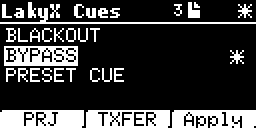
To activate BYPASS mode on the B.Beat, go to the Library menu and press F1 until you reach the LAKYX Cues page. Select the BYPASS cue and press F3 (Apply) to activate it. To deactivate BYPASS mode, select any other Cue and press F3 (Apply) again.
LAKYX live Art-Net show
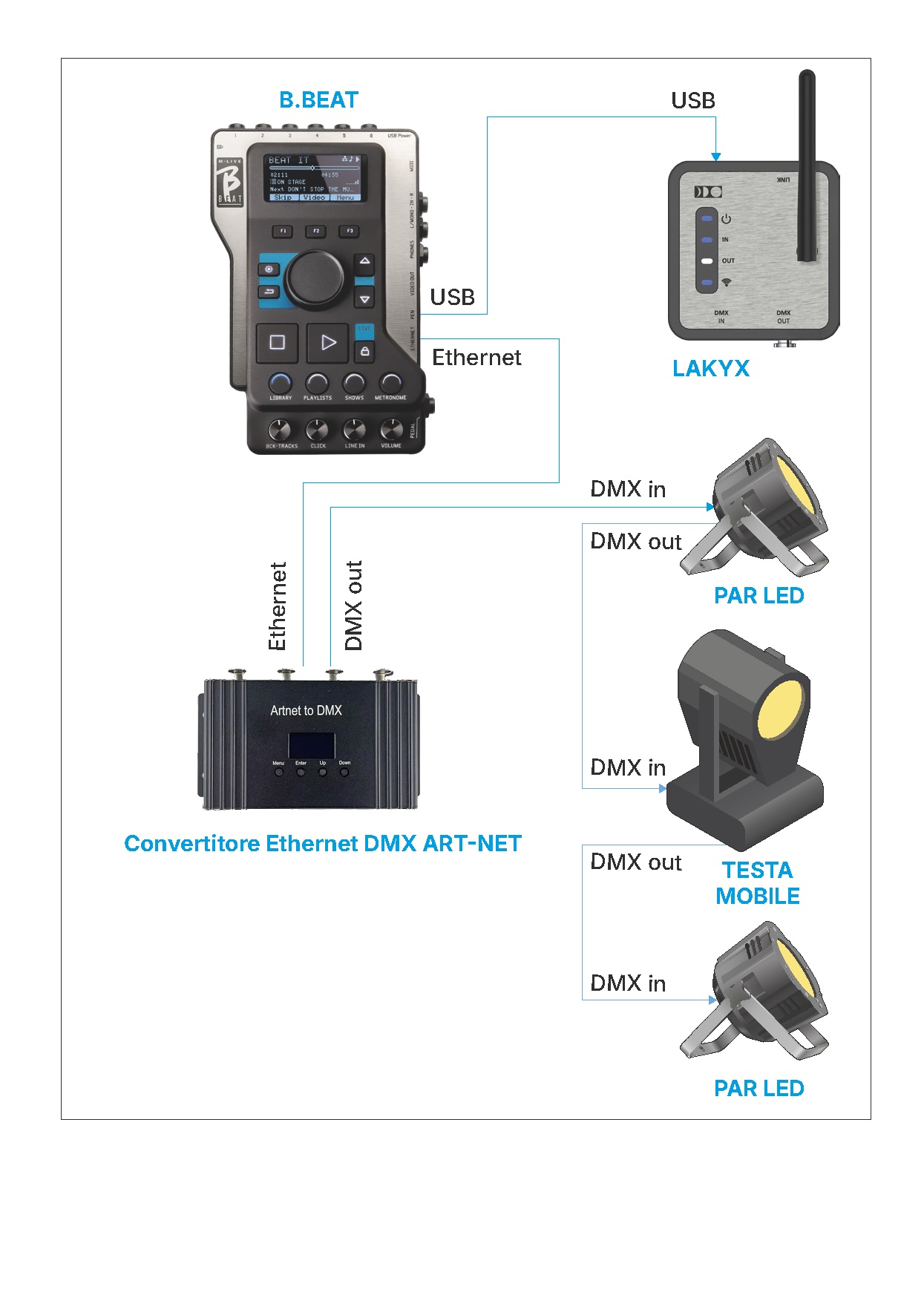
LAKYX also supports the ART-NET protocol, allowing DMX data to be transmitted over an Ethernet network.
The following options are available for configuring ART-NET in the LAKYX project's Settings section:
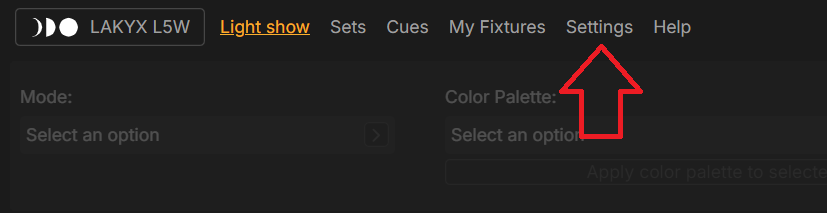
- DHCP on: the IP address is assigned automatically by the network.
- DHCP off: you can manually set the IP address to use for ART-NET communication.
In addition to the IP address, you also need to select which DMX universe to use among those available.
NOTE: transmitting shows via the ART-NET protocol requires an Ethernet connection. If the B.Beat is connected to the network via Wi-Fi, ART-NET transmission will not be available. To use ART-NET, the device must therefore be connected via an Ethernet cable.
Creating, configuring and optimizing the show
LAKYX offers several ways to create, manage and control your light shows, adapting to different operational and artistic needs.
The main available modes are:
- Automatic generation of a light show starting from an audio project.
- Recording a show from external DMX sources.
- Creating a lights-only project, without using audio tracks.
Automatic generation from an audio project
This mode is LAKYX's main operating workflow and lets you generate, view and play back a light show synchronized with the audio project. The initial creation and configuration steps are described in the Quick Start Guide, which is the recommended starting point for using the system.
Once the show has been generated, the Set section lets you configure and manage the entire lighting rig by assigning fixtures, defining DMX addresses, and organizing devices into groups and operational roles. For moving heads, you can also define movement areas to optimize the behavior of the light effects.
A properly configured Set lets LAKYX interpret the scene more effectively and generate a coherent, dynamic show. The different light categories (Background, Effect, Accent and Key) are processed differently by the automatic generation engine, helping create a balanced, professional show.
Once configuration is complete, the Set can be saved and used by all the light shows in the project. If the LAKYX system is connected to the lighting rig, B.Beat Manager automatically manages the start and stop of the show via the Play and Stop commands, keeping audio and lights synchronized for the whole duration of playback.
If you want to further customize the generated show, you can use the Help function built into the software. The guide provides detailed information on the available functions and the configuration options offered by LAKYX.
DMX channels in automatic generation
- L5 / L5W models 512 channels
- L1 model 128 channels
- L model (demo) 512 channels · max 1 min
Configuring DMX show recording
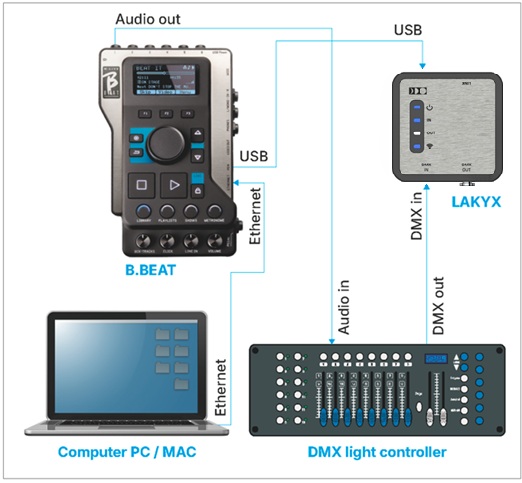
LAKYX lets you record a DMX light show already programmed on an external console or controller, save it within the project, and play it back later in perfect sync with the music.
To use this function, connect the DMX output of the lighting console or external controller to LAKYX's DMX IN input using a 3-pin XLR cable. Also make sure LAKYX is connected to the B.Beat via USB Type-C to ensure communication between hardware and software. This function is available on all LAKYX models.
To start recording, open an existing audio project in B.Beat Manager, go to the Media section at the bottom of the screen and select DMX Recordings. From here you can access recording mode and capture the DMX data coming from the external console or controller.
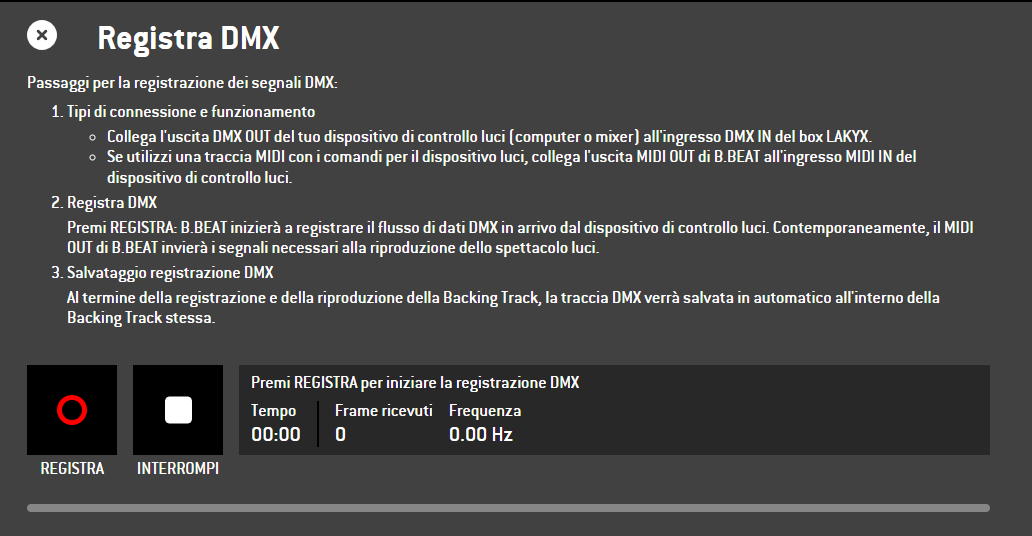
To start recording, press the RECORD button inside the LAKYX software.
The system will automatically run a 5-second count-in. When the countdown ends, B.Beat will start playing the audio project and LAKYX will begin capturing the DMX data coming from the external console or controller.
At the end of the song, recording will stay active for a further 5 seconds. This extra interval allows any light events occurring just before the start or right after the end of the track to be captured correctly.

Once capture is complete, you can check and, if necessary, correct the alignment between the audio track and the DMX data directly within the LAKYX software.
The 5 seconds of offset added before and after the song were introduced to make any adjustments easier and to achieve even more precise synchronization between music and light effects.
After saving, the recorded show will play back automatically together with the audio project, keeping music and lights synchronized.
In this mode, there's no need to configure the Set or the lighting rig, since all the information is already contained in the DMX recording. Any changes must be made on the console or controller used for programming; for this reason, it's recommended to perform the recording only once the show has been completed and checked.
Creating a lights project without audio tracks
You can also use LAKYX without a musical backing track.
The Lights-only Project feature lets you easily create a standalone light show, ideal for enhancing the scene when there are no audio tracks. It's the perfect solution for unplugged songs, acoustic performances, spoken segments, presentations, or any situation where the lights need to accompany the action without syncing to pre-recorded music.
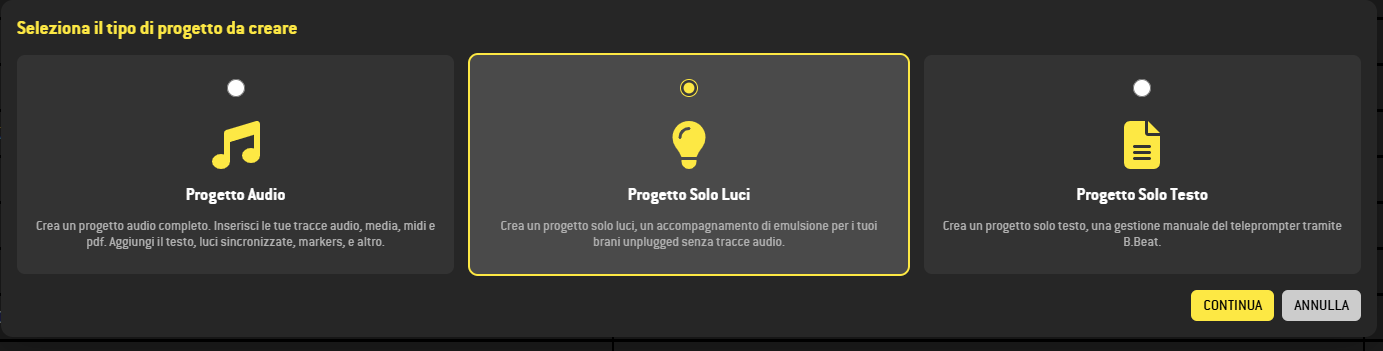
To create a Lights-only Project, from the Home/Projects screen click the Create new project button at the bottom left. In the Select the type of project to create window, choose Lights-only Project and press Continue.
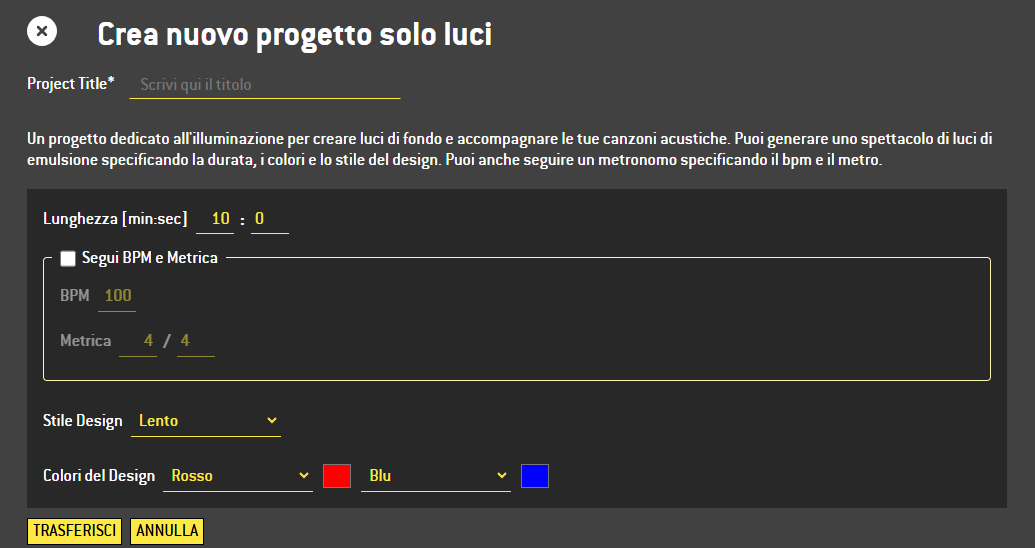
LAKYX automatically generates a lighting show by defining parameters such as duration, colors and style design. Alternatively, you can sync the show to a metronome by setting BPM and time signature, achieving movements and effects consistent with the tempo of the performance.
Several style designs are available, such as Slow, Andante and Moderate, letting you adapt the behavior of the lights to the desired atmosphere.
This way, you can easily create a dynamic light show even without a musical base, while keeping it consistent with the rhythm and style of the performance.
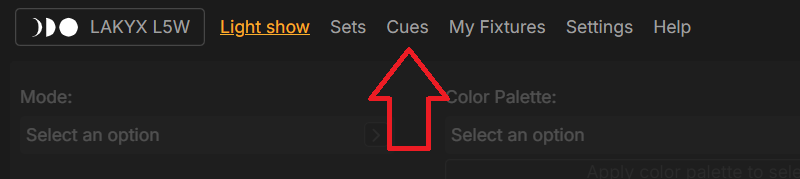
Cues are customizable light effects that can be used within shows or as LAKYX's automatic behavior when no light project is active.
Each Cue can be configured by defining its name, colors, style design, playback speed and optional key role, letting you quickly create effects that are consistent, reusable and suited to different operating situations.
To recall a Cue directly from the B.Beat, follow this procedure: from the B.Beat's Library menu, press F1 until you reach the LAKYX Cues page, select the desired Cue and press F3 (Apply) to activate it.
The system includes 3 default Cues:
- BLACKOUT (everything off)
- BYPASS (bypass mode)
- PRESET CUE (default cue)
You can edit or add new Cues directly from the LAKYX Cues menu.
Show preview
The generated light show can be viewed during the generation and editing stage in several operating modes:
- Direct DMX output, by connecting LAKYX to the lighting rig
- Art-Net transmission via Ethernet, to compatible systems managed by B.Beat
- 3D stage simulation, using dedicated software such as Capture, for previewing the show in a virtual environment
This setup lets you quickly move from creating the show to viewing or performing it live, while keeping the audio project and lighting system fully consistent.
ART-NET transmission and configuration
Connect computer-based visualization systems (such as Capture) to the Ethernet port.
To ensure the system works correctly, it is essential that the connected devices (interfaces, DMX visualizers or compatible fixtures) are also configured on the same Art-Net universe.
The connection to use follows the Art-Net diagram shown earlier.
Note: the computer running the visualization software can be the same one used to edit the show via B.Beat Manager.
3D stage simulation (Capture)
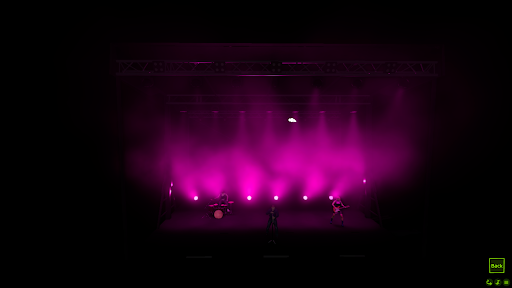
If you don't have a lighting rig or lighting design software, LAKYX includes a simulation mode that lets you view the show even without a physical set.
Within the Set section, two preconfigured demo sets are available, designed to simulate a virtual stage and check the show's result in real time.
Procedure
- Download the preset sets from the dedicated link: download.m-live.com/fixtures/demo_set.zip
- Open the executable file and launch the simulation environment
- Select the desired set (512 or 128) and set it as default in the Set section of B.Beat Manager
Once configured, the light show will be transmitted via Art-Net and displayed within the 3D environment, allowing you to preview the project's final effect.
NOTE: If, after downloading the set, the lights or base Cue don't appear correctly, you need to check the universe configuration within Capture.
Open the software and follow this path: Window → Universe → External Universes
Double-click Art-Net Universe and assign Universe 1.
This way, the project generated by LAKYX will be correctly matched to the universe used by the Capture simulation.
Wireless features L5-W only
LumenRadio CRMX lets LAKYX transmit the DMX signal wirelessly, reducing the need for cabling on stage and simplifying the installation of the lighting system, particularly in live contexts or complex setups. Fixtures must be equipped with a compatible wireless receiver.
LAKYX has a dedicated LED for radio connection status, useful for quickly checking that the wireless link is working correctly.
Pairing between LAKYX and compatible devices can be done using the LINK button on the device. The RP-SMA antenna connector allows connection of the dedicated radio antenna for signal transmission.
Pairing / radio reset function
On the top of LAKYX, near the USB Type-C connector, there is a small hole that gives access to the radio module button using a paperclip or a SIM removal tool.
- Press for less than 1 second: activates CRMX pairing
- Press for more than 3 seconds: resets radio parameters
Press gently until you feel the internal button click.
Technical specifications
- USB-C interface for power and data communication with B.Beat
- 1 DMX input (3-pin XLR)
- 1 DMX output (3-pin XLR)
- Built-in 120 Ω DMX termination on both connectors
- Support for 1 DMX universe
- Ability to bypass the DMX signal from DMX IN to DMX OUT
Power and connections
- USB-C Power + B.Beat data
- DMX IN DMX signal input
- DMX OUT DMX signal output
- LINK Wireless pairing
- RP-SMA antenna L5-W only
Mechanical data
- Dimensions 84 × 80 × 61 mm
- Weight 170 g
System requirements
- Minimum RAM 8 GB
- Recommended RAM 16 GB
- Disk space 6 GB
Operating notes
For setups with more than 32 DMX devices connected to the output, it's recommended to use a DMX splitter/repeater to ensure signal integrity.
FAQ — Frequently asked questions
| Question | Answer |
|---|---|
| LAKYX isn't recognized by my PC when I connect it to the USB port | LAKYX doesn't communicate directly with the computer via USB-C. The device must be connected to B.Beat and managed through B.Beat Manager. |
| DMX signal is present, but the fixtures stay off | Check: that LAKYX is correctly connected to B.Beat, that the Power and DMX OUT LEDs are on. If the POWER LED is blinking, check that you're using a suitable USB-C cable, that the software is updated to firmware version 6.x or later, that the fixtures have been configured correctly, and that the DMX universe is configured correctly. Also make sure the project is playing. |
| The CRMX wireless connection doesn't work | Check: that the model in use is L5W, the only one with a built-in wireless module; that the antenna is properly connected; that the Wireless LED is on; that the pairing procedure using the LINK button has been completed correctly. |
| The LAKYX device isn't detected in B.Beat Manager | Check: that the LAKYX device is properly connected to B.Beat via USB-C; that B.Beat is properly connected to the computer; that B.Beat Manager is updated to the latest available version (6.0 or later); that B.Beat's firmware is updated and compatible with the version of B.Beat Manager in use. |
| The light show doesn't start automatically | Check: that the DMX universe is configured correctly; that the audio project has been correctly loaded onto the B.Beat; that BYPASS mode is deactivated; that the project is actually playing. |
| In BYPASS mode the lights don't follow LAKYX | Check: that BYPASS mode is not active; that DMX control hasn't been handed over to an external console or controller; that LAKYX is set as the control source for the light show. To restore LAKYX's automatic control, deactivate BYPASS mode. |
For technical support, see this page: www.m-live.com/assistenza